

Application Description
Design custom cross stitch patterns with ease.
Cross Stitch Pattern Creator
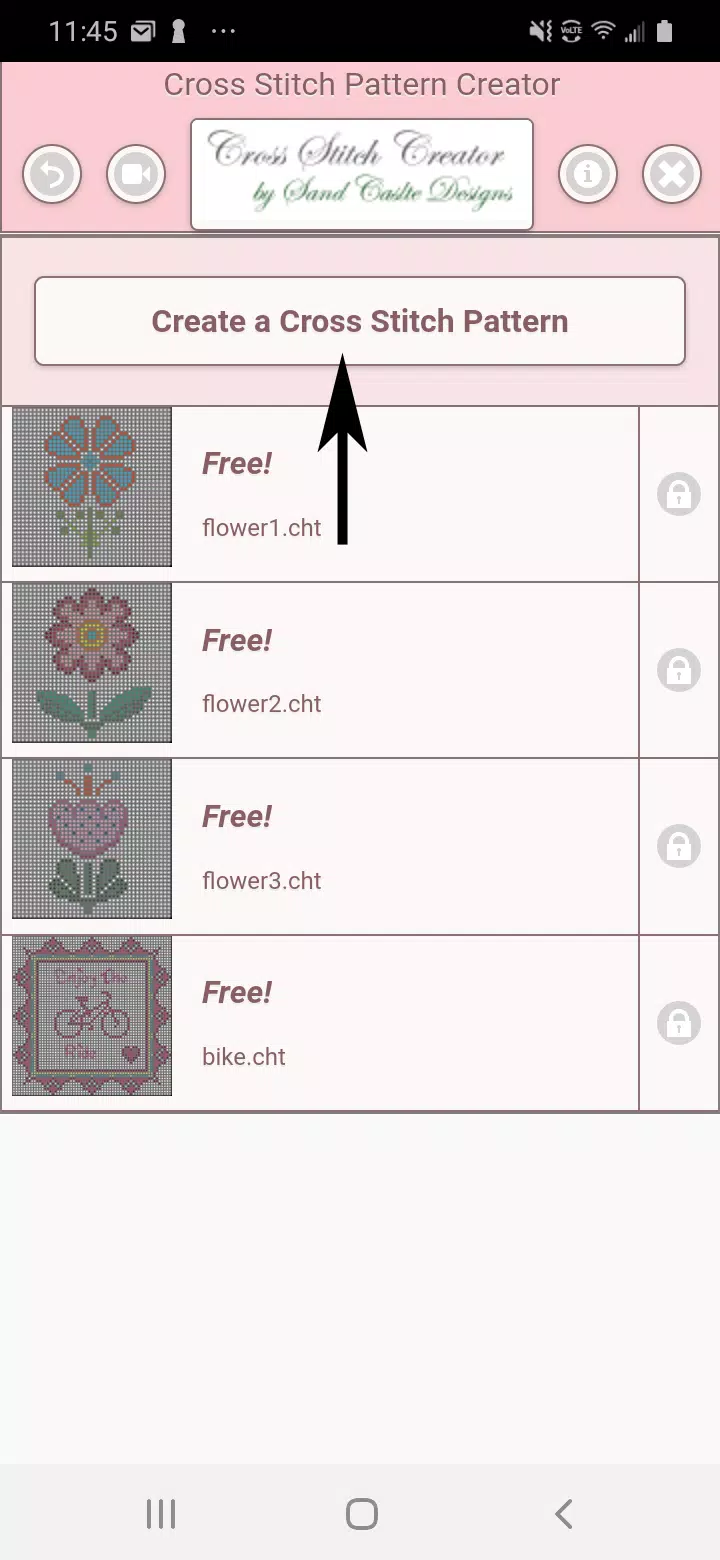
Comes with four downloadable sample patterns for free. Activation requires a $2.99 fee.
A tablet is highly recommended for optimal use due to the typical size of cross stitch patterns.
Craft unique cross stitch patterns using the Cross Stitch Pattern Creator.
To begin, click the "Create a Cross Stitch Pattern" button.
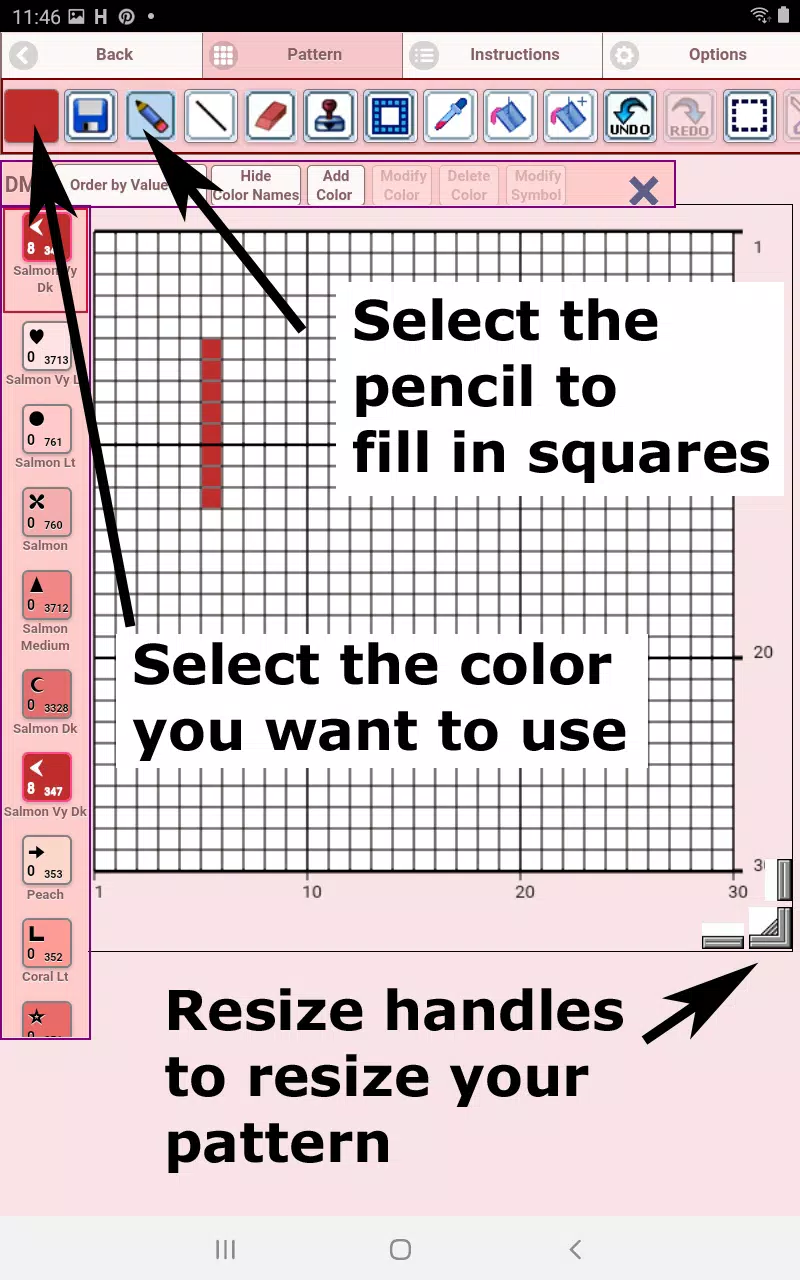
The Cross Stitch Pattern Editor will open. Fill the grid squares with DMC floss colors.
You can also add custom colors if desired.
Getting started: Use the pencil tool to mark squares in your pattern. Use the eraser to clear marked squares.
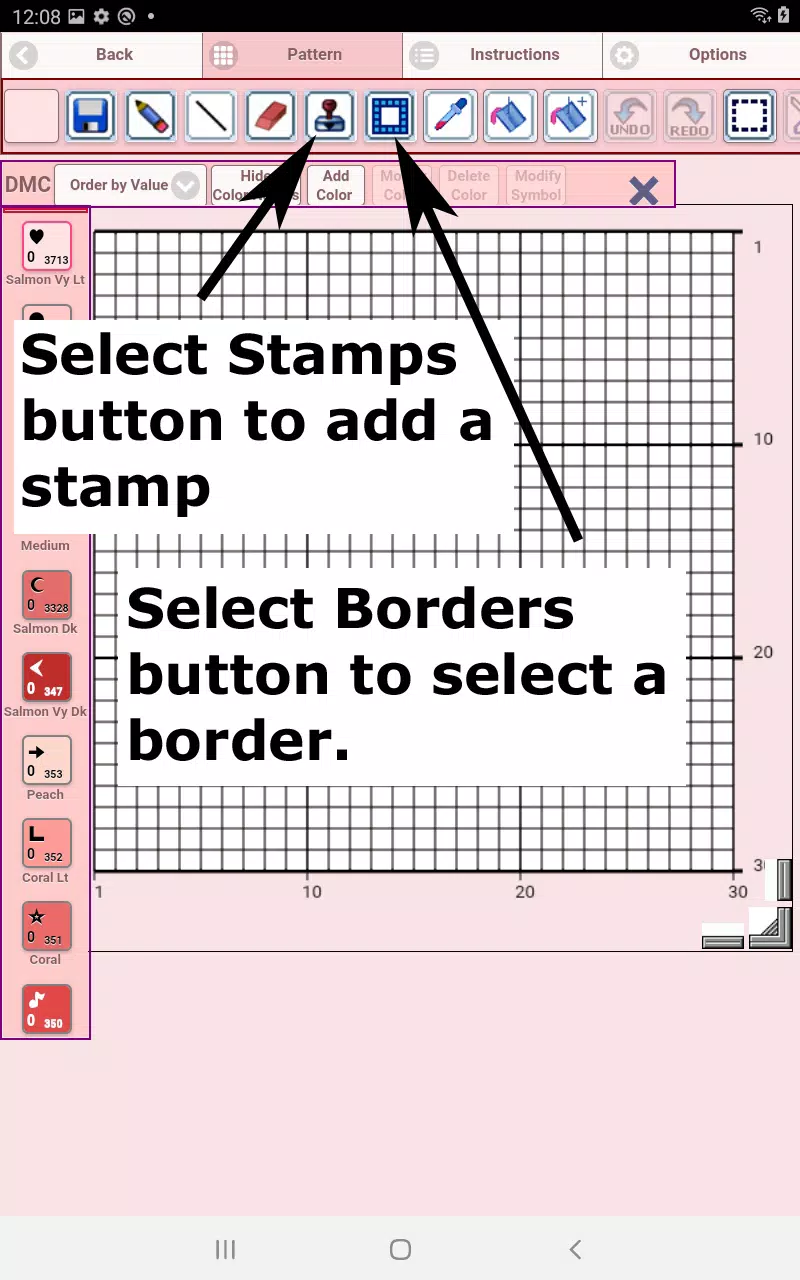
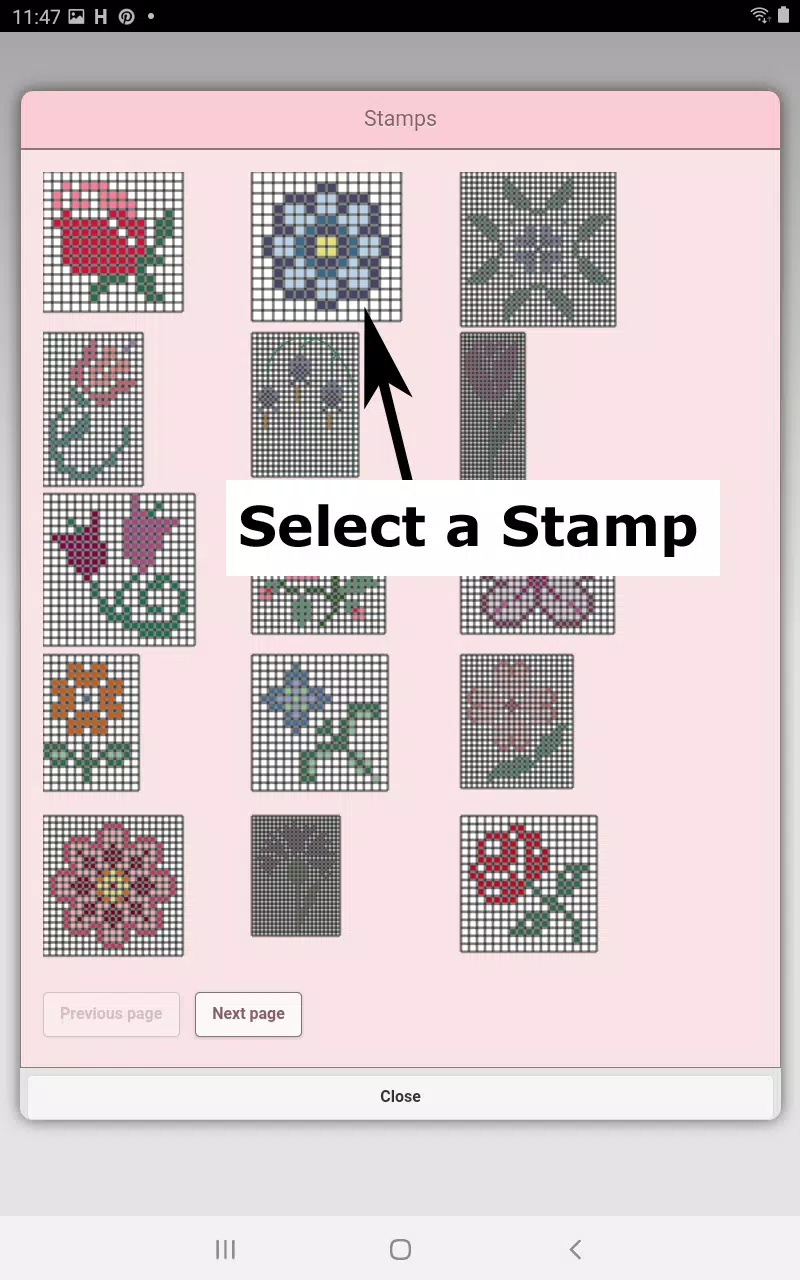
Choose from over 80 decorative stamps and borders to enhance your cross stitch pattern.
The toolbar buttons, from left to right, include:
DMC Floss Color button – Select your preferred floss color.
Save button – Save your pattern.
Pencil button – Fill squares in your pattern.
Eraser button – Remove filled squares and backstitch lines.
Backstitch button – First choose a color, then click this button to draw backstitch lines.
Backstitch move button – Drag a selected backstitch to a new position.
Backstitch move stitch end – Select a backstitch; blue handles appear. Adjust either end as needed.
Stamps button – Add small pre-designed cross stitch motifs to your pattern.
Borders button – Apply borders that automatically wrap around your design.
Dropper button – Pick a color from your pattern to use elsewhere.
Bucket button – Fill a selected area with the current color.
Bucket+ button – Replace one color with another throughout the pattern.
Undo button – Reverse your last action.
Redo button – Restore changes you previously undid.
Selection box button – Define an area to cut, copy, rotate, or flip.
Cut button – After selecting an area with the selection tool, cut it out.
Copy button – Copy a selected area to the clipboard.
Paste button – Paste the copied area and position it as needed.
Rotate button – Rotate the selected area or entire pattern.
Flip right/left button – Flip the selection or pattern horizontally.
Flip top/bottom button – Flip the selection or pattern vertically.
Zoom in button – Enlarge the pattern view.
Zoom out button – Reduce the pattern view.
Symbols button – Show unique symbols for each color to indicate its value.
Picture button – Upload an image from your device to convert into a pattern.
Social media button – Share your pattern via email, text, and more.
Resize handles – Located at the bottom-right corner; drag to adjust pattern dimensions.
Option settings – Customize grid color, switch fill style from Solid to X's, or hide the row/column counter.
Choose not to display the row and column counter.
Instruction page – View DMC colors used and finished sizes for various Aida cloth counts.
Aida cloth sizes
Finished Product page – Preview the stitched outcome of your pattern.
You can also adjust the fabric color.
Cross Stitch Pattern Creator Screenshots
Reviews
Post Comments
Trending Games
Trending apps









Topics
More
Latest Articles
More